Author: torrie.r

  • Flipgrid: Video Discussion Tool for Fostering a Community of Learners

    A common criticism of educational theory is that it is often separated from practice. Educational technology tools are a strategic way to bridge the gap and design instruction centered around targeted learning theories. Flipgrid is a seamless and user-friendly tool that prides itself on building a student-centered community of learners. The basic premise of Flipgrid is that it gives teachers the power to create grids in which they or their students pose topics and other members of the class participate. There are powerful social learning features such as sharing, liking, and visual feedback for students. Flipgrid as a company loves to empower their users and is receptive to showcasing the tool in action. As can be evidenced through their dedication to accessibility, they go beyond lip service and design a technology that has the potential to provide truly transformative learning moments.

    Applying Theory to Practice

    Flipgrid is a flexible tool that could be used intentionally with different learning theories. At a high level, it fits into the social constructivist paradigm. Students are constructing their own understanding in a shared social setting. Going beyond the abstract, theories such as community of practice, problem-based learning, or social learning theory fit nicely as a design framework for Flipgrid. The actual learning theory used will depend on the design of the grid.

    The underlying features of Flipgrid that make it an appropriate tool for these types of theories are the opportunity for students to contribute their own response, to reply to their peers’ post, to engage with content from within their normal communication channels, and to articulate their understanding. Students who would normally have reservations in participating in class now have a platform for their voice.

    flipgridintroduction

    Fully Utilizing the Tool

    The vast number of educational technology tools available for teachers is overwhelming. The supply is constantly changing and different solutions rise and fade in popularity. As educators know, it is not enough to simply learn about the tool. We need a chance to observe the tool in action, to trial it in low-risk environments, and to reflect on our use of the tool in a community of practice.  EdTechGuides has a nice example of the Flipgrid tool in action.

    In order to optimize use of Flipgrid you should experiment and participate in your own Flipgrids. This is what is known as the sandbox space. Get used to what features are available in different subscription plans and how this tool would work in your classroom setting. Flipgrid is able to integrate with your Learning Management System or website. The five major features of Flipgrid are the grids, topics, responses, replies, and feedback.

    Grids: These are basically the home base for your classroom content. This is where students will go to view topics that have been posted and post their responses.

    Topics: Topics are started with a video and text explanation. Topics can revolve around anything you are studying or discussing in class.

    Responses: Students are able to respond to topics on a laptop or mobile device. They have the power to pause, record, delete, and flip their cameras in order to share their surroundings.

    Replies: Students can post replies to other video postings. Entirely new discussions are fostered through threaded video responses.

    Feedback: The feedback system allows for quick and rapid assessment through an emoticon rating scale. Advanced subscriptions also give the option for text feedback.

    Check our our video for the theory behind Flipgrid and its features:
     

  • Padlet: Collaborative Canvas Tool


    Padlet: An Easy to Use Online Collaboration Tool for Multimedia Sharing

    Padlet is a very user-friendly canvas or digital bulletin board that allows people to collaborate and insert anything (images, videos, documents, text) via drag and drop.  This tool is very flexible and can be used creatively in a classroom context in many ways.

    Equitable Participation

    Despite the recent trend in online learning towards personalization and competency-based learning, there is inherent value in learning from others. While this can be accomplished in the traditional brick-and-mortar classroom without technology, student participation is typically not even. Some students like to answer every question while others do not want to actively participate. Purposeful technology use can help to alleviate the problem of uneven student engagement in a physical classroom. When education is moved to the online environment, this intentional focus on connecting students to each other and the teacher is critical. Padlet is a tool that creates a student-centered learning environment that prompts participation and articulation of student understanding. Padlet is very intuitive to use and is functional across multiple devices. Flipping the classroom is only as powerful as the experience for students. Padlet strengthens this experience.

    Applying Theory to Practice

    The design of the Padlet will vary based on the learning theory used. It is, by nature, a social learning tool focused on students constructing their own knowledge. Digging a little deeper, a prompt that forces students to experience uncomfortable cognitive dissonance is feasible through constructive argumentation. Connectivism and the associated social network analysis is inherent through Padlet design features. The application of learning theories is as varied as the imagination of the classroom in which Padlet is used.

    There are five different styles of Padlet. They can range from a Pinterest style to a poll to a class debate. The tool is focused exclusively on fostering a shared sense of ownership, and subsequently, participation in the course. This social learning focus extends to the instructor through finding collaborators and model Padlets.

    Fully Utilizing the Tool

    With teaching, grading, communicating with parents, and volunteering teachers frequently have little spare time to investigate new teaching techniques. Sometimes, this is encountered through professional development. However, it is hard to integrate these technologies into everyday teaching practices. When the tool has a low learning curve and the ability to try without financial repercussions it becomes more attractive to teachers. To observe the tool being used check out our guide over at EdTechGuides.

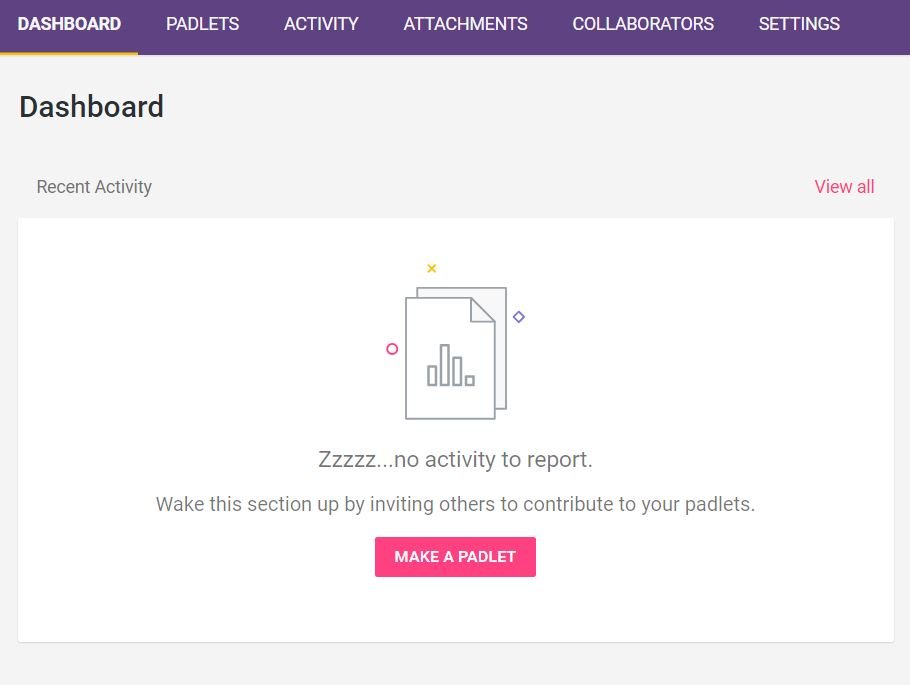
    Padlet is free to use. However, if you want to use Padlet Backpack, it provides an additional layer of customization and privacy for your classroom. The Padlet is constantly saved and has availability in 29 languages. There are different levels of access based on the stakeholder role. Padlet is able to work with virtually any file type or embedding directly from various apps. The home page will have your dashboard, Padlets, activity, attachments, collaborators, and settings.

    Dashboard: This is your home page. At this page, you will see any recent Padlets and contributions to those Padlets.

    dashboard

    Padlets: This page lists all of the Padlets you have created. This is where you select those five different Padlet types. These types allow for customization and the application of different theories of learning.

    padlets

    Activity: Recent activity will show here in greater detail than on the dashboard.

    Attachments: If there is any attachment being used in a Padlet, this is where it can be uploaded and shared.

    Collaborators: Using this feature, teachers can find both local and distant collaborators with which to create or build upon existing Padlets.

    Settings: Allows users to choose their preferences and reset their username and password. This is also where you can control overall privacy settings.


  • ExploreLearning: Active Experimentation


    Science and math concepts are often some of the most challenging for students to grasp. It is not enough to listen to a teacher talk about concepts and then complete standard assignments. Rather, a learner must be able to learn from the teacher in addition to interacting with simulations and experiments. Physical science experiments and mathematical manipulatives are great ways to practice inquiry. However, they are not suitable for all concepts or learning environments. ExploreLearning Gizmos provides a holistic learning experience, featuring a large library of over 400 simulations.

    explorelearningfizmos

    Reasons Physical Manipulation is Insufficient

    In a comprehensive review of virtual and physical science labs it was found that the ideal science laboratory curriculum contained both physical and virtual labs (De Jong, Linn, & Zacharia, 2013). This is because they each have different affordances and constraints and can complement each other. Virtual simulations afford the opportunity to practice multiple times with a phenomena and to explore concepts that can’t be a physical lab. When it comes to learning environments, virtual simulations and manipulations are often the only type of inquiry experience that online students have. They can also be used for home school or homebound students. ExploreLearning is a comprehensive science and math software that comes complete with differentiated simulations, teacher guides, student worksheets, assessments, and state and national standards. The virtual simulations in ExploreLearning are known as Gizmos and these terms will be used interchangeably.

    Applying Theory to Practice

    A limiting feature of virtual simulations is that they do not create the ill-structured, problem-solving environment that is so foundational to the practice of math and science. However, ExploreLearning scaffolds students so that by the end of the worksheet, they are expected to control confounding variables and operate the simulation in order to solve a research question. Broadly speaking, ExploreLearning falls under the scope of constructivism. More specifically, it falls under the scope of project-based learning, cognitive dissonance, or Kolb’s experiential learning cycle. These learning theories are complementary and could be seen in the same learning sequence depending on the perspective someone takes.

    Utilizing ExploreLearning

    ExploreLearning comes with a free trial to assign as many simulations as you want to your students. This allows you to try the product without fully creating a course and tracking student assessment data over courses. With this trial, you are able to download the student guide and have students take the quiz at the end of the simulation.  EdTechGuides provides nice example of the ExploreLearning tool in action. All of the instructional design is already done and the simulations are ready to use. This reduces the time a teacher needs to devote to creating a lesson plan from scratch.

    ExploreLearning has several nice features, not limited to:

    Differentiated Gizmos: Students in the same grade level are going to have vastly different abilities. ExploreLearning has created the same Gizmo at multiple developmental levels. This allows you to assign Gizmos based on the student’s level while ensuring that everyone is engaging with the same content.

    Recommended Gizmos: Based on previous searches and selections, ExploreLearning is able to give you a recommendation as to what other simulations would be of relevance to you.

    Searching by Standards: ExploreLearning has aligned Gizmos with multiple different standards from individual states to the Next Generation Science Standards and Common Core. This is particularly helpful if you have an articulated curriculum that mandates when concepts are taught.

    Responsive Design: Gizmos work on a variety of devices and sizes including PC, iOS, Chromebooks, and Android devices.

    Take a look at our Learning-Theories.com tutorial video for using ExploreLearning Gizmos below.